Around the app
However you open weBiller (the web app or your phone), the layout stays consistent. This page is a quick tour so the rest of the guide makes sense.
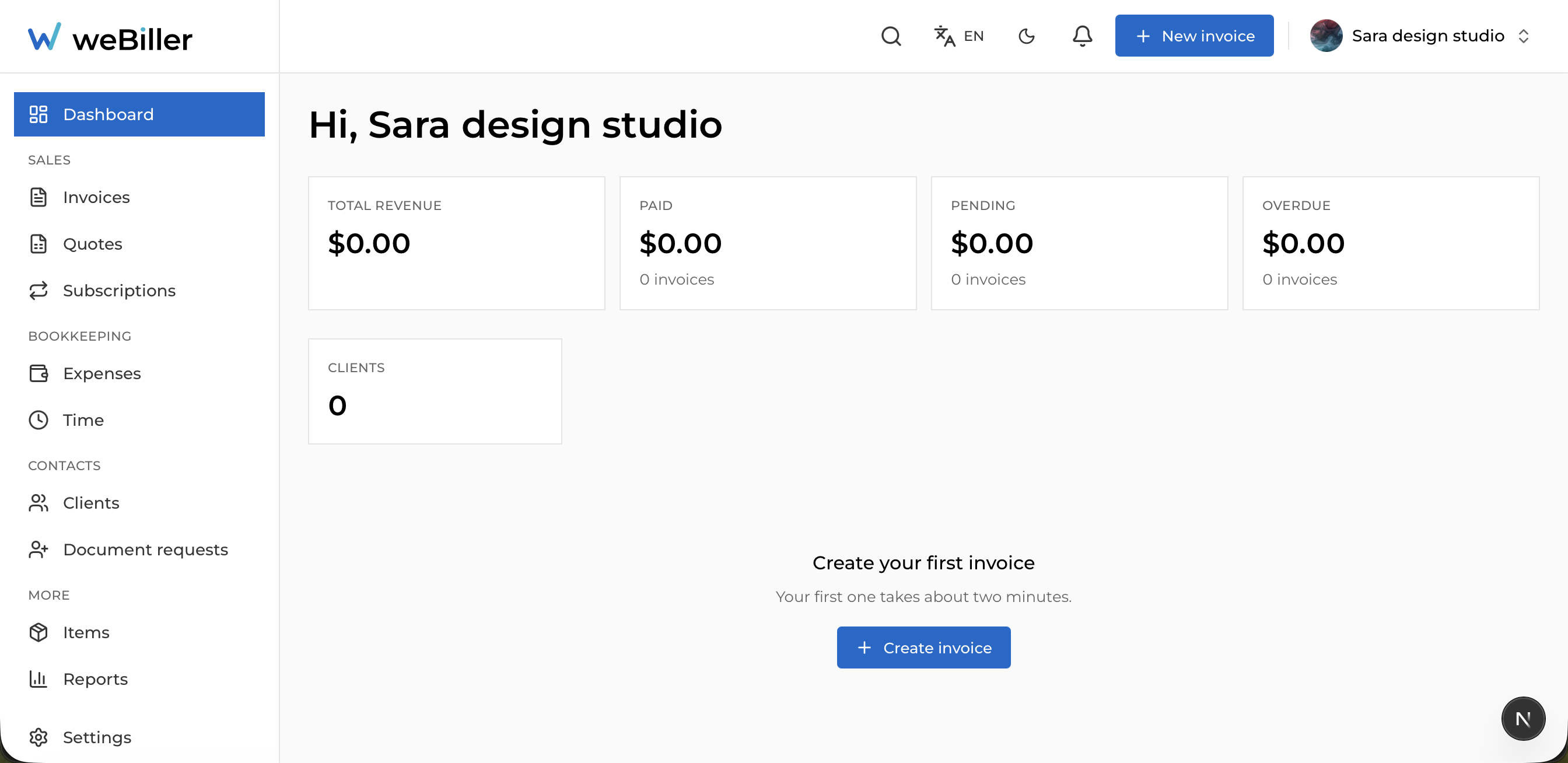
The sidebar
On the web, the left sidebar groups everything you do:
- Dashboard: your financial overview.
- Sales: Invoices, Quotes, Subscriptions.
- Bookkeeping: Expenses, Time.
- Contacts: Clients, Document requests.
- More: Items, Reports.
- Settings: preferences and data export, plus Reminders & dunning and Businesses & team.
On a phone, these live in a bottom bar (Dashboard, Invoices, Clients, More) with the rest under More.
The top bar
Left to right along the top of every screen:
- Search (⌘K / Ctrl-K): jump to any invoice, quote, expense, or client from anywhere. See Search.
- Language: put the app in English, Français, or Nederlands. Languages are listed in their own name, and the change applies immediately. See Language.
- Theme toggle: switch between light and dark. (You can also set this in Settings → Appearance.)
- Notifications bell: shows a badge with your unread count; opens your Notifications feed.
- New invoice: a shortcut to start an invoice from any screen.
- Business switcher: your account and business menu.
The language switcher changes the app for you. The language your clients receive documents in is a separate setting; see Document language.
On a phone the top bar shows the weBiller wordmark on the left; the sidebar’s contents live in the bottom bar instead.
Switching businesses
weBiller supports more than one business per account. The business switcher (top-right) lists everything you belong to, marks the active one, and lets you switch. Below that it holds Create business, My account, Manage businesses, Settings, and Sign out.
Everything you see (invoices, clients, reports) belongs to the active business. Switching businesses swaps the whole workspace.
Always check which business is active before creating invoices or clients, especially if you run more than one. Details in Businesses & team.
The read-only banner
If you’re in a business as an Accountant, a banner sits just under the top bar reading Accountant access. You can view, download, and export everything in this business, but not change it.
While it’s showing, New invoice and the other create and edit buttons are hidden. Your own account settings (language, theme, notifications, password) stay yours to change.